Installing Legacy drivers for KNG series radios

Installing Legacy drivers for KNG series radios
KNG radios running firmware versions older than 5.13.x still utilize the older NDIS based drivers. These drivers are included with every installation of RES, but Windows 10 or higher requires manual steps to associate with the proper device after it is detected improperly as a USB Serial adapter. To install the drivers please first install RES on the PC in question, then follow the steps below:
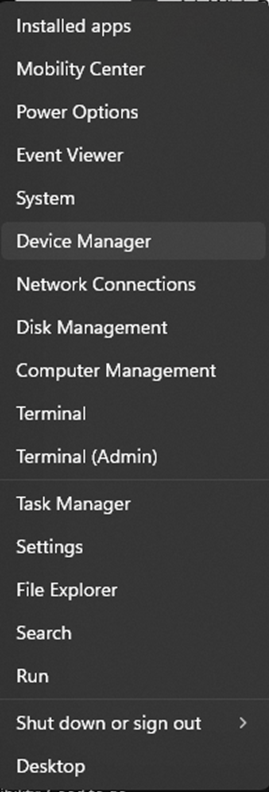
With RES closed, and the radio ON and connected to the PC via USB, navigate to your device manager (Windows 10+ right click start menu, then select “Device Manager”)
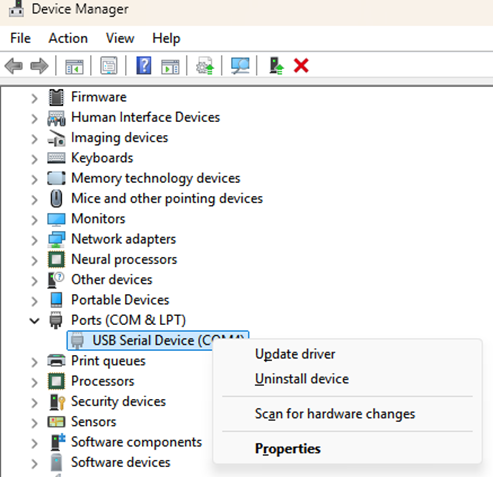
Within the Device manager locate “USB Serial device” under “Ports (COM & LPT)” right click and select “Update Driver”
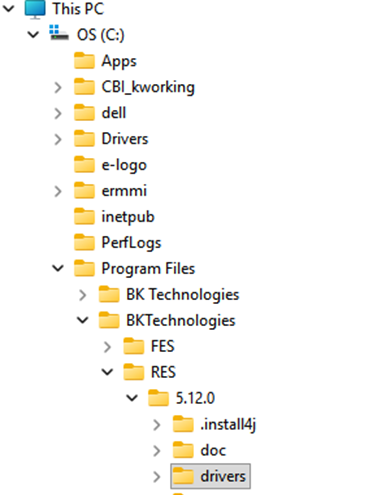
In the resulting window, select “Browse my computer for drivers” Then select the “Browse” button. The drivers will be located in
C:\Program Files\BKTechnologies\RES\”Your RES Version”\drivers - as pictured. Ensuring that “Include subfolders is checked, select “Next” to install the drivers. Windows will automatically find and install “RNDIS Gadget Driver”. At this point, you can close the device manager and re-open RES, the radio should be detected properly.